How To Make Your Computer Greet You and Tell You The Time On Startup
How about making your computer to greet you on start up like Jarvis From Ironman.I think it is cool.In this tutorial we will show you how to make your computer greet you and tell you the time on startup.With a Visual Basic Script and some changes in startup programs setting we can make our computer speak.So friends lets start:
Step 1:
• First of all copy and paste below Visual Basic Script to Notepad.
• Then save the file as “Greetme.vbs“.[Assign any name you want but don’t forget to add extension “.vbs”]
• Now check the saved file is working or not by double clicking it.

• Then save the file as “Greetme.vbs“.[Assign any name you want but don’t forget to add extension “.vbs”]
• Now check the saved file is working or not by double clicking it.
Set Sapi = Wscript.CreateObject("SAPI.SpVoice")
 dim str
 if hour(time) < 12 then
 Sapi.speak "Good Morning Freefworld"         ' Add Your Own Greetings Message.
 else
 if hour(time) > 12 then
 if hour(time) > 16 then
 Sapi.speak "Good evening Freefworld"     ' Add Your Own Greetings Message.
 else
 Sapi.speak "Good afternoon Freefworld"    ' Add Your Own Greetings Message.
 end if
 end if
 end if
 Sapi.speak "The current time is"           ' Add Your Own Time Greetings Message.
if hour(time) > 12 then
 Sapi.speak hour(time)-12
 else
 if hour(time) = 0 then
 Sapi.speak "12"
 else
 Sapi.speak hour(time)
 end if
 end if
if minute(time) < 10 then
 Sapi.speak "o"
 if minute(time) < 1 then
 Sapi.speak "clock"
 else
 Sapi.speak minute(time)
 end if
 else
 Sapi.speak minute(time)
 end if
if hour(time) > 12 then
 Sapi.speak "P.M."
 else
 if hour(time) = 0 then
 if minute(time) = 0 then
 Sapi.speak "Midnight"
 else
 Sapi.speak "A.M."
 end if
 else
 if hour(time) = 12 then
 if minute(time) = 0 then
 Sapi.speak "Noon"
 else
 Sapi.speak "P.M."
 end if
 else
 Sapi.speak "A.M."
 end if
 end if
 end if
Step 2:
After successfully completing above step,now we are going to add this Script to our Startup programs.
• So first Enable the option “Show Hidden files,folders and drives” in “Folder Options” setting.
• Then copy and paste script file to:
• Then copy and paste script file to:
“C:\Users\USERNAME\AppData\Roaming\Microsoft\Windows\StartMenu\Programs\Startup“
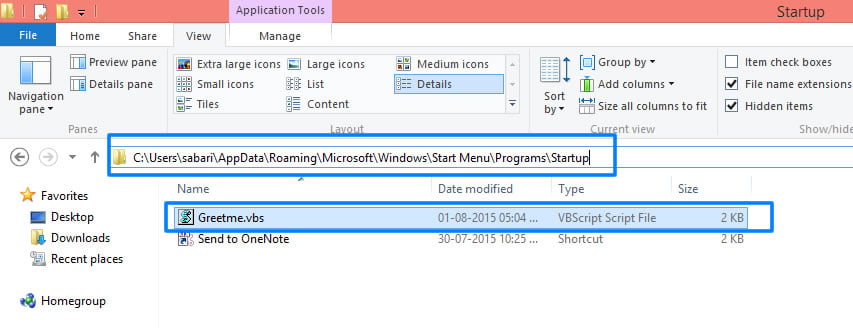
We are done!
Now onwards your computer will greet you and tell you the current time on startup……. If you face any problem just comment below. Share this simple trick with your friends.
Now onwards your computer will greet you and tell you the current time on startup……. If you face any problem just comment below. Share this simple trick with your friends.


0 Comments